Products
The platform powered by all of your business context.

Call Booking
A link anyone can use to book a call with you
How it works
Call booking is inbound booking: you share a link, and people book a call with you. They open it, pick a day and a time, give a name and an email address, and are booked. They need no Orvaly account, and the times are shown in their own time zone.
An admin on your account configures the booking: its link, how long a call is, how much notice you need and how far ahead people can book.
The invitee receives a confirmation email with a calendar invite, and the call runs in Orvaly Meet.
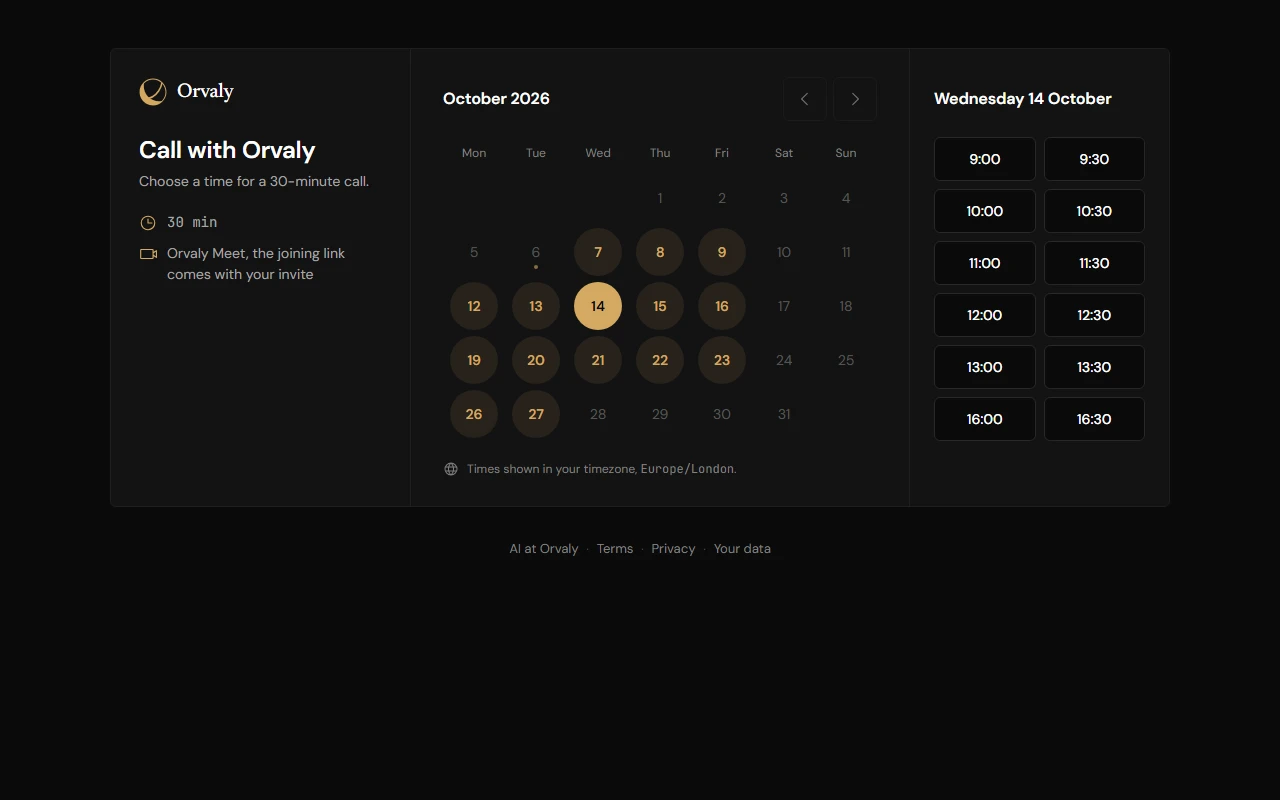
- Setup - Configure how you want the call to run and what you need to know upfront
- Invite - Share the link, and anyone can book a call with you.
- The call - The meeting is already created, so the call opens in Orvaly Meet.
Meet
Meet with anyone, agents work as you talk
How it works
Start a meeting instantly, or schedule one and send the invites. The room opens in your browser.
Clients and other guests can join without an account: they type a name and wait in the lobby until a host admits them. Everyone is told before joining that the host may start transcription.
Once the host starts to record, the meeting is transcribed. As you talk you can message the room or privately, ask Astra a private question, and see the tasks AstraDo proposes from what is being said. A signed-in person can share their screen from a desktop computer.
When the recording stops, a dynamic summary of your conversation is written. You review it first or have it saved automatically, and it goes to your Vault.
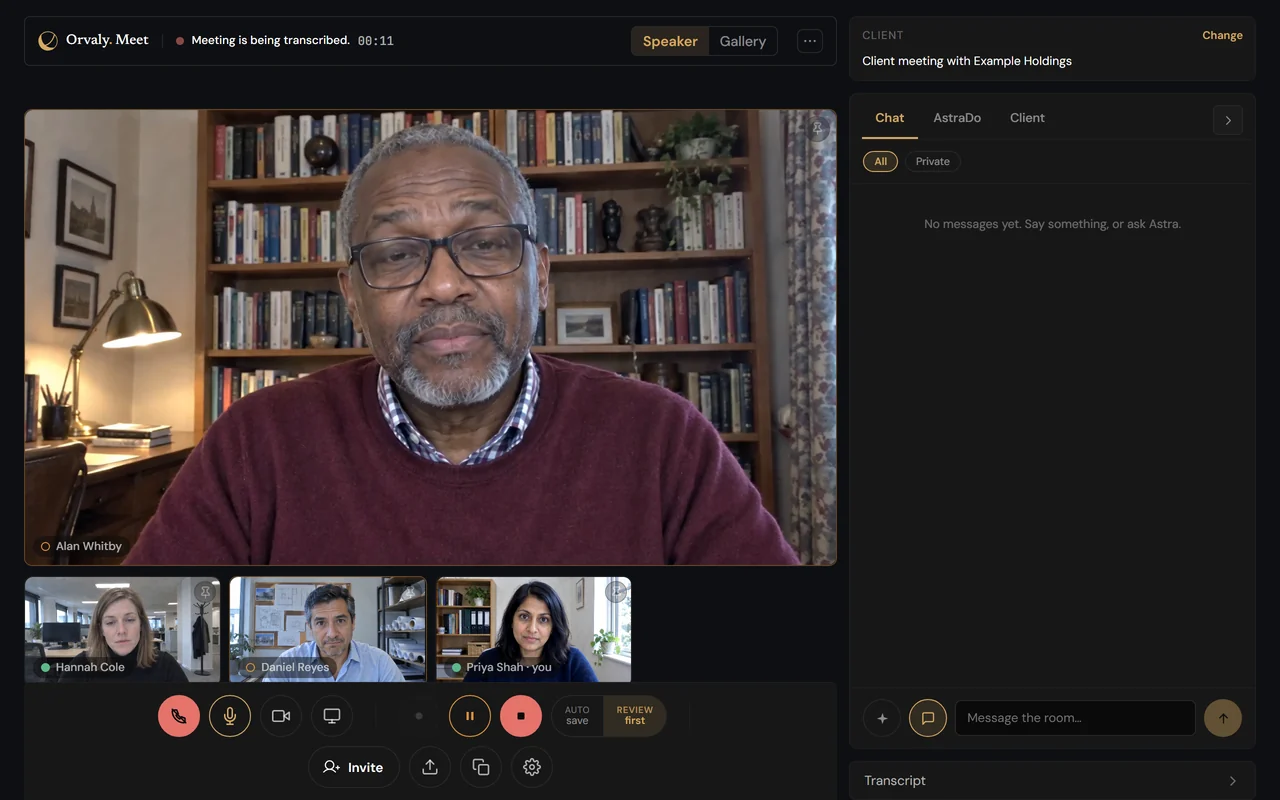
- A client call - File the meeting to its client and a dynamic brief is generated in the client tab.
- While you talk - AstraDo proposes tasks for review and does the work while the call is still running.
- After the call - The dynamic summary of the meeting is in your Vault, its actions are on your Actions page, and Astra can answer from it.

Transcribe
Capture conversations on other meeting platforms, in-person meetings, or your solo thoughts
How it works
Transcribe opens a tab in your browser for the conversations that happen outside Orvaly Meet. Choose one of three options: a call on another platform in a browser tab, in a physical room, or solo dictation.
For a call on another platform, you share the browser tab the call is in, with its sound. Nobody has to be added to the call. No bots join the call. When you are in person with others, one microphone takes in the conversation. On your own, it captures what you say.
A banner shows for as long as it's listening. As with any recording, getting the consent it needs is your responsibility.
When you stop, the dynamic summary is written and it's saved to your Vault, automatically or after you have reviewed it. You can file it to a client before you start or afterwards.
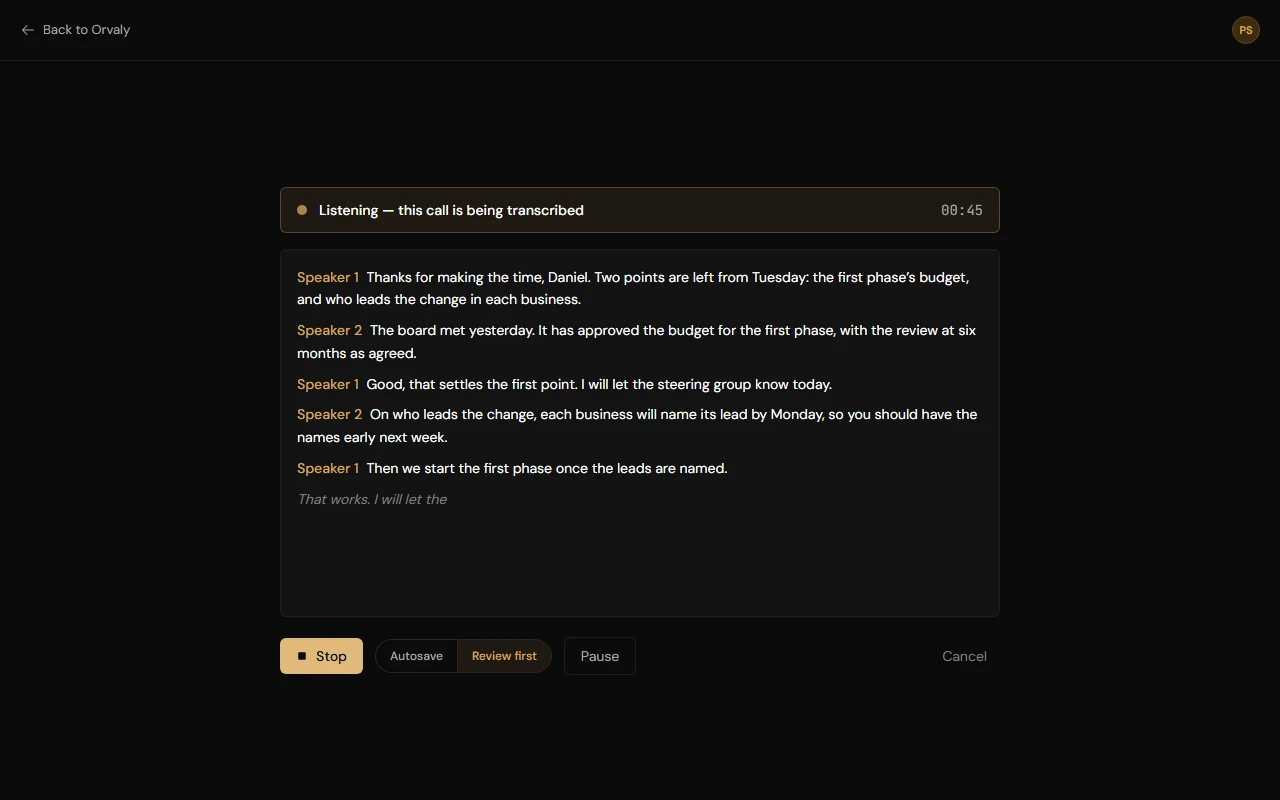
- A call on a client's own platform - Join a meeting in a browser tab as you usually would, and use Transcribe to capture the conversation.
- A meeting in person - Open Transcribe on a laptop or phone in a physical room.
- Your own thoughts - Dictate a note straight to your vault.

Client Manager
File your work to the client it belongs to
How it works
Every client has a page. At the top is a brief of where things stand, written by Astra and accessible to everyone on your team. Every sentence carries a numbered source, and clicking a number opens that source beside the page.
Under the brief are the next steps, the activity, the people, the documents, the tasks and the details. Anyone on your team can add a client, log what happened and file to it.
Log a note, a call or an email by typing it or pasting it in. Astra suggests the people, the tasks and the next step it found, and each one is added to the client's record when a person confirms it.
File a document to a client by uploading it or by choosing one already in your Vault.
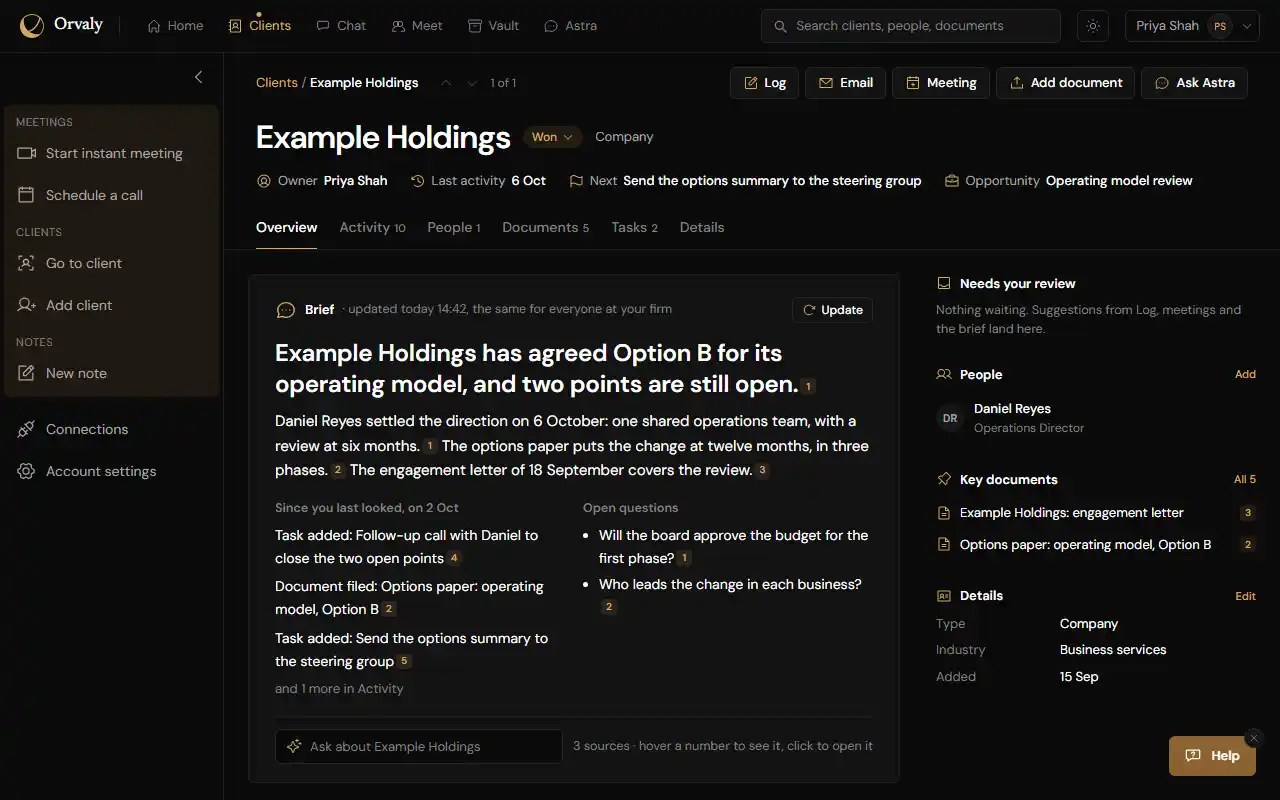
- Before a call - Open the client's page and read the brief. What was said last time is in front of you, with its sources.
- During a call - File the meeting to the client, and the client's summary and documents are beside you in the meeting.
- After a call - The record is on the client's page. Ask Astra to draft the follow-up email, then send it from your own mail.

AstraDo
Agents that execute work in meetings across Orvaly and other platforms
How it works
AstraDo follows a meeting as it runs and proposes a task when someone says that something needs doing. Each proposal is a card in the meeting, and the work starts when you or a colleague presses it. The tasks AstraDo can complete are continually being expanded. Currently it cannot execute every task that is asked for and proposed.
It can look something up in your Vault or on the web, draft a summary, a brief or an email, set up a meeting with your colleagues, or propose an edit to a record in your Vault.
The result comes back into the meeting for you to read. Nothing it drafts is sent, saved or scheduled without a person approving it.
Outside Orvaly, AstraDo works through the accounts you connect yourself. With Gmail connected, an email you have reviewed in a meeting is sent from your own address.
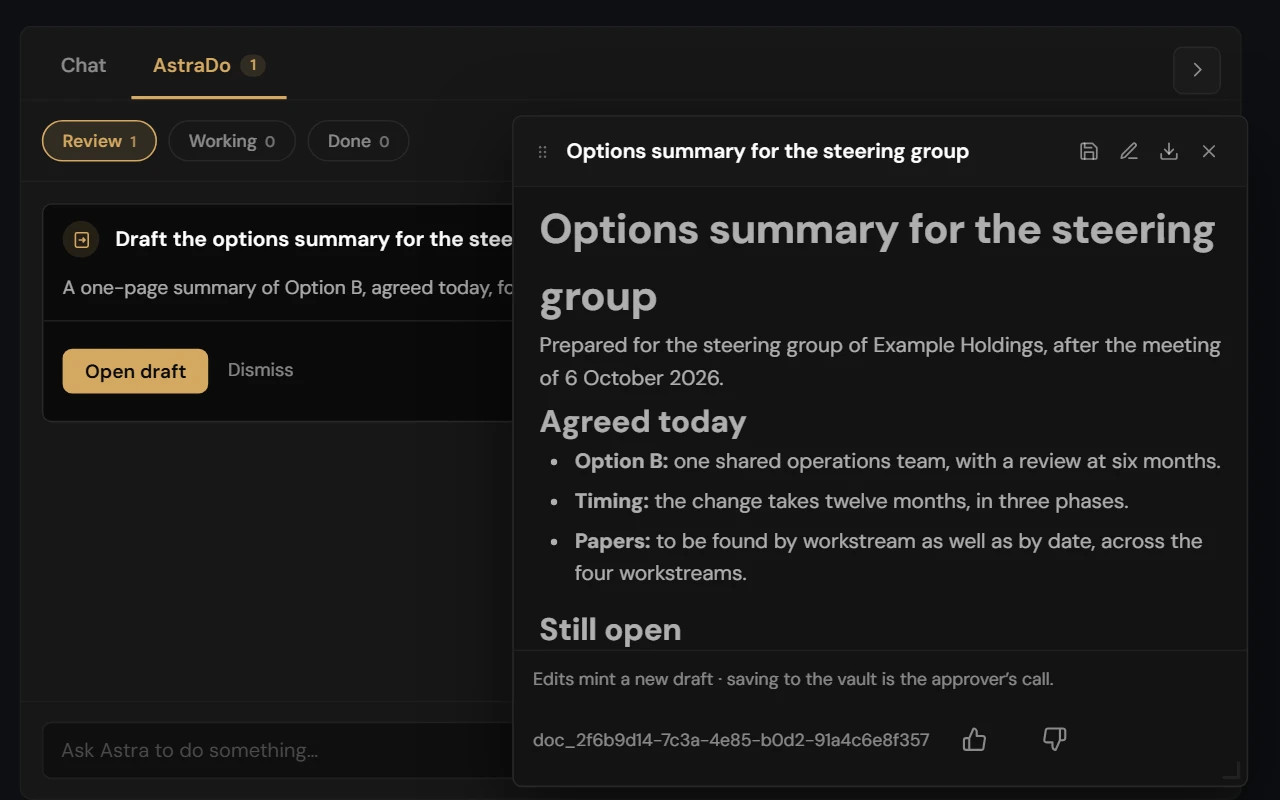
- In the meeting - A client asks for a one-page summary. AstraDo proposes it, you press Draft it, and the draft is open while the call is still running.
- As the call closes - The follow-up email is drafted from what was said. Review it, change it, and send it from your own Gmail.
- After the meeting - A draft you want to keep is saved to your Vault under your name, and from there it can be filed to the client.

Astra
Reason over your business knowledge, compose documents in your branded colours & more
How it works
Astra is Orvaly's AI, with a screen of its own. Ask it a question and it answers from your Vault, and brings in research from the web when that helps.
You see its steps as it works, and each answer shows the documents and the web pages it drew on.
Ask for a document and Astra drafts it beside the conversation. Change it by telling Astra or by editing it yourself, save it to your Vault when it is right, and export it as Word, PDF or PowerPoint.
Keep a conversation to one client, or ask across everything your business knows. You can attach a file for that conversation alone.
AI output can be wrong. Check anything important before you rely on it or send it on.
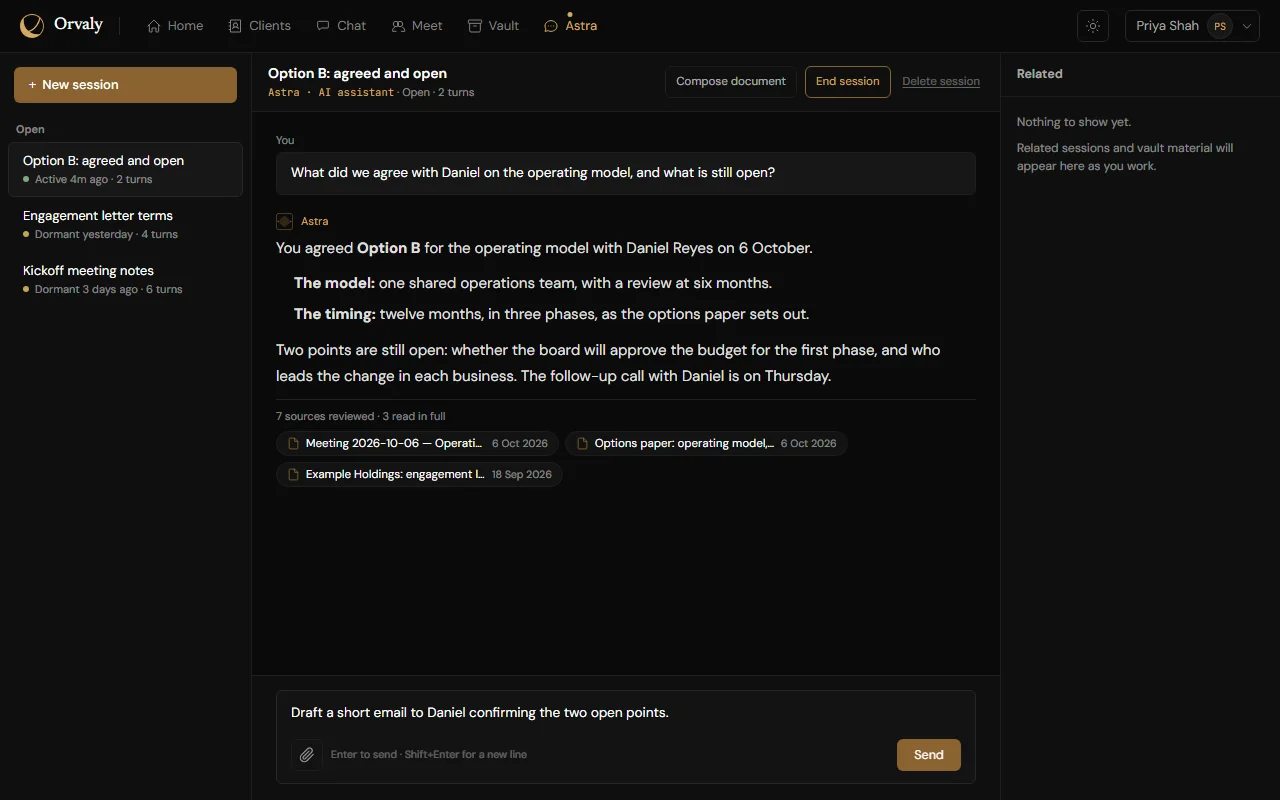
- Before a call - Ask what was agreed with a client last time, and read the answer with the documents it came from.
- Writing it up - Have Astra draft the document from what is already in your Vault, then save it and file it to the client.
- Wherever you are working - Astra is also in the meeting for a private question, on each client's page for the brief, and in the Help window.

Chat
Chat with your teammates, pull your discussions for analysis any time
How it works
Chat is written conversation between you and your team: channels, direct messages and group conversations, with threads, pinned messages and search.
A channel is open to everyone or by invitation only, and every conversation is limited to its members. You also have a private Notes conversation to yourself.
What you write here is there for Astra to recall when you ask. Describe a discussion you remember and Astra finds the likely ones. The one you confirm is brought into your conversation with Astra. It looks only in conversations you are part of.
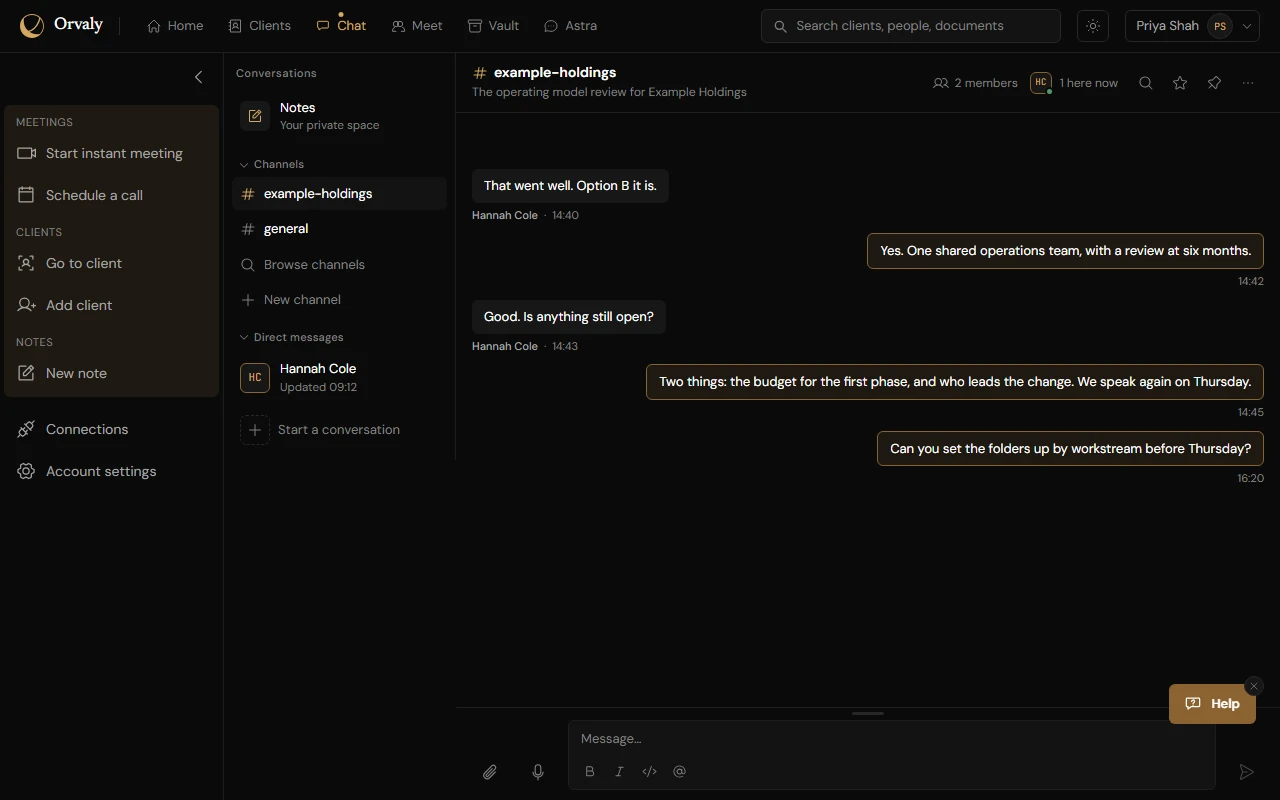
- A client's work - Keep a channel for it, so the discussion about that client is in one place.
- From talk to meeting - Start a meeting from a conversation, and the others get a link to join.
- Keeping what matters - Save an attachment from a conversation to your Vault, or dictate a note to yourself.
Vault
Every meeting and document, remembered and retrieved when you need it
How it works
The Vault is where your documents and meeting records live. A meeting's dynamic summary is filed here for you. Add anything else by writing a note or uploading files.
When you add a document, Astra suggests a title, tags and a summary, and you review them before it is saved.
Find your files by title or a tag, or press Enter to run an AI search. Navigate the folders and narrow with different filters.
Each record shows when it was created and saved and where it came from, and anything written by AI is marked as generated by Astra.
Export a record as Markdown, Word, PDF or PowerPoint. Delete an entry and it leaves your workspace. You can restore it within 30 days.
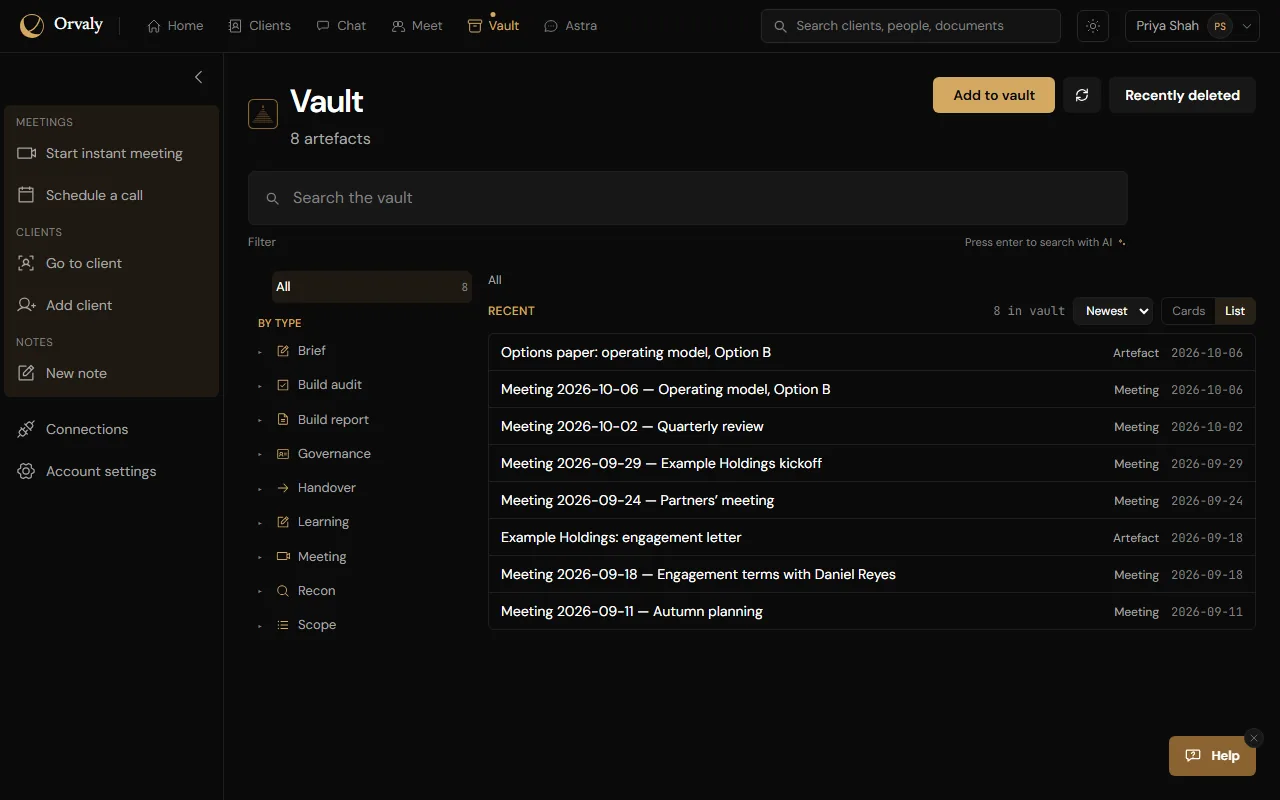
- After every meeting - The record is filed here for you, and to the client if you linked the meeting to one.
- Starting with Orvaly - Upload the documents you already have, up to 50 files at a time.
- Whenever you ask - Once something is captured in the vault, Astra can answer questions from it.